Documentation
Setup guides and every command, in one place.
Getting started
Add NULLWAVE to your server, pick a language, then open /help in Discord to see every command grouped by category.
Most setup commands open a panel that expires after 120 seconds. Re-run the command if the panel goes stale.
- 1Click Add to Discord and authorize the bot in your server.
- 2Run /language to set EN, ID, BN, PT-BR, or FR for the server.
- 3Run /help to browse Moderation, Management, Monitor, Roblox, SA-MP, Ranking, and Utility.
- 4Give the bot Manage Server + Manage Messages so panels and logs work.
Server setup
Each system has its own panel: /welcome, /logging, /level, /sticky, /autorole, /reactionrole, /suggestion, /review, /monitor. Open one, pick a channel, save.
Panels use dropdowns and buttons. Nothing applies until you confirm in the panel.
- 1/welcome — pick a channel for join/leave cards.
- 2/logging — pick one channel, toggle the 14 events you want, use Test.
- 3/autorole — pick roles given automatically on join.
- 4/level — open the 4-tab panel (home, settings, rewards, danger) and set rates.
- 5/monitor — pick Server or Roblox, pick an output channel, then Add.
Panels expire after 120 seconds and monitor panels auto-close after 2 minutes idle.
Moderation
Keep chat clean with warnings, timeouts, purges, link/spam filters, and the trap channel.
/banBan a member with a reason.Ban MembersTutorial
- 1Run /ban and pick the user option.
- 2Add a reason (max 512 chars) and days 0-7 for message cleanup.
- 3Confirm — the bot DMs the user, then bans and logs it.
/ban user:@spam reason:raid days:1- Can't ban higher role — move the bot role above the target.
- Can't ban bot/owner — Discord blocks it, pick another action.
/kickKick a member with a reason.Kick MembersTutorial
- 1Run /kick and pick the member.
- 2Add a reason so it shows in logs.
- 3Confirm — user can rejoin with a new invite.
/kick user:@troll reason:spam- Kick fails on higher roles — check role order.
- User not in server — use /unban or /ban instead.
/timeoutTimeout a member for a duration.Moderate MembersTutorial
- 1Run /timeout and pick the member.
- 2Set duration and reason.
- 3Use /untimeout to lift it early.
/timeout user:@spam duration:10m reason:flood- Timeout capped by Discord (max 28 days).
- Needs Moderate Members on both you and the bot.
/untimeoutRemove timeout early.Moderate Members/unbanUnban by user ID.Ban MembersTutorial
- 1Copy the banned user ID (enable Developer Mode).
- 2Run /unban with that ID.
- 3Re-invite them manually — unban does not auto-join.
/unban user:539005361332682752- Unknown user — the ID is wrong or never banned.
/warn add / list / removeIssue, view, or remove warnings.Moderate MembersTutorial
- 1/warn add — pick user + reason, bot stores it with an ID.
- 2/warn list — pick user to see all warnings.
- 3/warn remove — paste the warning ID to delete one.
/warn add user:@spam reason:nsfw-link- Remove needs the exact warning ID from /warn list.
- Warns also appear in /logging if warn event is on.
/purgeBulk-delete messages with filters.Manage MessagesTutorial
- 1Run /purge with amount 1-1000 (required).
- 2Optional: filter by user, role, type (bots/humans/links/attachments/embeds), or contains text.
- 3Confirm — reply is ephemeral, messages older than 14 days are skipped.
/purge amount:50 filter:links- Bot also needs Manage Messages in that channel.
- Large purges run in batches — wait for the done message.
/lock / unlockLock or unlock a channel.Manage Channels/slowmodeSet per-channel slowmode.Manage Channels/anti-linkAuto-delete suspicious links, configurable panel.Manage GuildTutorial
- 1Run /anti-link — home shows status, counts, punishment, log channel.
- 2Open Whitelist to exempt users/roles, Channels for safe channels, Domains for allowed domains.
- 3Open Actions to set punishment delete/warn/timeout (+ minutes), Log to pick a log channel, then toggle on.
/anti-link → Actions: timeout 10m → Log: #mod-log → Toggle on- Staff links deleted — add their role to whitelist.
- No log output — set the log channel in the Log page.
/antispamRate-limit spam with configurable panel.Manage GuildTutorial
- 1Run /antispam — default 5 messages in 10 seconds, punishment timeout.
- 2Open Whitelist to exempt staff/bot channels, Log to set a log channel.
- 3Adjust threshold + punishment, then toggle on.
/antispam → threshold 5/10s → punishment timeout → Toggle on- Legit fast chat flagged — raise threshold or whitelist the channel.
- Panel expired — re-run /antispam (120s lifetime).
/trapTrap channel with softban / ban / kick / timeout. Auto-creates #dont-message.Manage GuildTutorial
- 1Run /trap, press Create — bot makes the trap channel.
- 2Press Settings — pick punishment softban/ban/kick/timeout (+ minutes) and log channel.
- 3Anyone who types in the trap gets punished instantly. Disable deletes the config.
/trap → Create → Settings: punishment kick → Done- Trap channel deleted manually — press Recreate.
- Panel auto-deletes 5s after expiry — re-run /trap.
Management
Welcome cards, logs, sticky messages, roles, suggestions, reviews, free games, and language live here.
/welcomeJoin/leave card setup panel.AdministratorTutorial
- 1Run /welcome — nav has Home, Welcome, Leave, Card pages.
- 2Welcome page: pick a channel, Edit Message (use {user} {server}), switch Card/Embed, Toggle on.
- 3Leave page: same flow for goodbye cards. Card page: background + preview. Press Done.
/welcome → Welcome → #welcome → Edit: Welcome {user} to {server}! → Toggle on- No card sent — channel not set or toggle still off.
- Bot can't send — give View + Send Messages in that channel.
/loggingOne channel, 14 event toggles, test button. Includes kick + warn.AdministratorTutorial
- 1Run /logging — Home shows status, channel, enabled count x/14.
- 2Pick a text channel from the menu, press Toggle on.
- 3Open Events page, tick memberJoin/Leave, messageDelete/Edit, ban, kick, warn, timeout, voice, channel, role, guild. Press Test, then Done.
/logging → #audit-log → Toggle on → Events: all on → Test- Empty log — event toggle off or bot missing View Audit Log.
- Test button disabled — pick a channel first.
/stickySticky message per channel, embed/plain toggle, custom header.Manage MessagesTutorial
- 1Run /sticky — list shows channel + embed/plain + 60-char preview.
- 2Pick a channel from the menu FIRST (buttons stay disabled until then).
- 3Press Edit Message, type content, toggle Embed/Plain, Done. Remove deletes one entry.
/sticky → #rules → Edit: Read the rules first! → Mode: embed- Buttons disabled — no channel selected yet.
- Sticky reposts on every message — that is intended, use Remove to stop.
/autoroleAuto-assign roles on join.Manage RolesTutorial
- 1Run /autorole — Home shows human roles + bot roles separately.
- 2Use the Human menu (up to 25 roles) and Bot menu for bot accounts.
- 3Press Toggle on, List to verify, Done to save.
/autorole → Human: @Member → Bot: @Bots → Toggle on- Role not given — bot role must sit above the target role.
- Bot role skipped — put it in the Bot menu, not Human.
/reactionroleRole picker via reactions or buttons.Manage RolesTutorial
- 1Run /reactionrole — pick a channel first.
- 2Edit Title/Desc/Color, then Add Role (emoji + role + label) per entry.
- 3Press Send to post the picker, Publish to update it, Toggle on.
/reactionrole → #roles → Add: 🎮 @Gamer → Send- Send disabled — channel empty or zero roles added.
- Member clicks do nothing — toggle is off or bot lacks Manage Roles.
/suggestionSuggestion board with approve/reject.Manage GuildTutorial
- 1/suggestion setup — pick the board channel (one channel only).
- 2Members use /suggestion submit with their idea (max 1000 chars).
- 3Staff approve/reject on the board. /suggestion disable removes it.
/suggestion setup channel:#ideas- Already have a channel — run /suggestion disable first.
- Submit fails — setup was never completed.
/reviewServer rating and review board.Manage GuildTutorial
- 1Run /review — Toggle on first (buttons unlock after).
- 2Pick board channel + log channel, Edit Message, Set Icon (default ⭐), Set Button Label.
- 3Press Send to post the review button, Publish to update, List to read reviews.
/review → Toggle on → #reviews → Send- All buttons disabled — system still toggled off.
- Send disabled — board channel not picked yet.
/freegameFree game tracker with role ping.Manage GuildTutorial
- 1Run /freegame — pick a notification channel + optional ping role.
- 2Tick platforms: Epic, Steam, GOG, Itch.io, Prime, Ubisoft, Origin/EA, PlayStation, Xbox.
- 3Press Enable, then Send Test to verify the embed.
/freegame → #free-games → platforms: Epic, Steam → Enable- Test disabled — channel not set yet.
- No ping — role menu is optional, pick one to mention.
/languageServer language: en, id, bn, pt_br, fr.AdministratorTutorial
- 1Run /language and pick one: English, Bahasa Indonesia, বাংলা, Português, français.
- 2Setting saves per-server and overrides user locale.
- 3Re-run to switch anytime.
/language language:Bahasa Indonesia- Panels still in old language — re-open the panel after switching.
/redeemRedeem premium codes./steal-emojiCopy an emoji into this server.Manage EmojisMonitoring
/monitor is one panel for SA-MP and Roblox. Pick a category, pick an output channel per category, then Add. Stopping a monitor deletes its embed before removing the DB entry.
Use /samp-server ip port for a one-off SA-MP lookup without creating a monitor.
/monitorUnified Server/Roblox monitor panel.Manage GuildTutorial
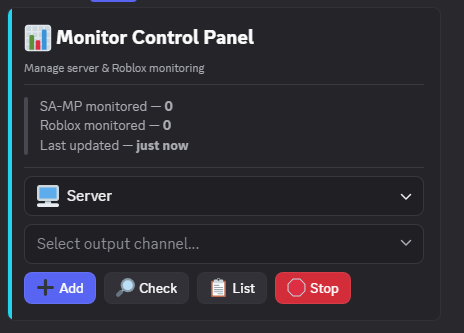
- 1Run /monitor — panel shows server count + roblox count + last update.
- 2Pick category Server (SA-MP IP:port) or Roblox (place ID), then pick an output channel.
- 3Press Add to create, Check to test now, List to see all, Stop deletes the embed + DB entry.
/monitor → Server → 51.79.44.111:7777 → #status → Add- Shows offline — wrong IP/port or place ID, press Check.
- Panel dead after 2 min idle — re-run /monitor.
/samp-serverQuery SA-MP hostname, players, gamemode, ping.Tutorial
- 1Run /samp-server with ip + port (default 7777).
- 2Bot replies with hostname, players, gamemode, ping — no monitor created.
/samp-server ip:51.79.44.111 port:7777- Query times out — server offline or port blocked.
Monitor embeds refresh on your chosen interval. Panel disables itself after 2 minutes without interaction.
Leveling
Chat XP plus voice XP (30s tick, skips bots and AFK). /level opens the Components V2 panel with home, settings, rewards, and danger tabs.
XP bounds: xpMin/xpMax 1-500, cooldown 1-600s, voice interval 30-3600s.
/levelLeveling config panel.Manage GuildTutorial
- 1Run /level — 4 tabs: Home (status), Settings (rates), Rewards (level roles), Danger (reset).
- 2Settings: xpMin/xpMax 1-500, cooldown 1-600s, voice interval 30-3600s, notif channel + message, card background.
- 3Rewards: add role per level. Test the card, Done to save. Voice XP ticks every 30s, skips bots/AFK.
/level → Settings: 15-40 XP, 60s cooldown → Rewards: Lv5 @Active → Done- No XP gained — system toggled off or cooldown still running.
- Rewards not given — bot lacks Manage Roles or role order wrong.
/rankYour rank card or another user's./leaderboardServer XP leaderboard.Roblox
/roblox opens the manager panel: API key setup, decal/audio upload from inside the panel, upload history with moderation status, group or personal mode.
Audio uploads resample to 44.1kHz MP3. Set Sound.PlaybackSpeed as shown in history to restore pitch on speed uploads.
/robloxRoblox manager panel with uploads inside.Manage GuildTutorial
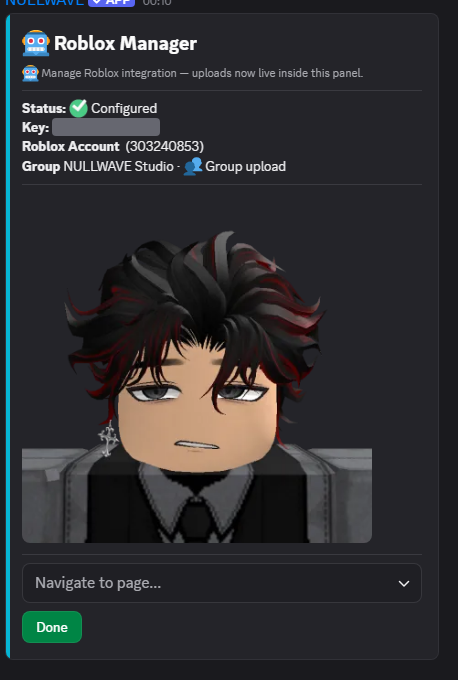
- 1Run /roblox — Home shows API status (masked key), linked account, group + personal/group mode.
- 2API Key page: paste your Roblox open-cloud key, pick personal or group target.
- 3Upload Decal/Audio pages: attach file + name inside the panel. History shows moderation status. Audio resamples to 44.1kHz MP3.
/roblox → API Key → mode: group → Upload Audio: theme.mp3- Upload rejected — key missing/invalid or file type wrong.
- Pitch sounds off on speed uploads — set Sound.PlaybackSpeed from History.
/roblox-profileLook up a Roblox user by username.Utility and games
Info lookups, emoji tools, and 14 built-in games under /game.
/game8ball, flood, connect4, hangman, memory, minesweeper, gtp, rps, slots, snake, trivia, ttt, typerace, wordle./userinfo / /serverinfo / /roleinfoInspect users, servers, roles./avatar / /ping / /botinfoAvatar, latency, bot status./emojiid / /emojiinfoGet emoji IDs or inspect an emoji./reportSend a bug report to the team./premium-statusCheck this server's premium state.Troubleshooting
Quick fixes for the issues people hit most.
- 1Panel says expired — re-run the command. Panels live 120 seconds.
- 2Slash commands missing — re-invite the bot with applications.commands scope, then wait a minute.
- 3Bot can't act — move its role above the target role and grant the permission listed on the command.
- 4Monitor shows offline — check IP/port or place ID, then use Check in /monitor.
- 5Wrong language — run /language again; per-server setting wins over user locale.
- 6Still stuck — join the support Discord with the command name and a screenshot.